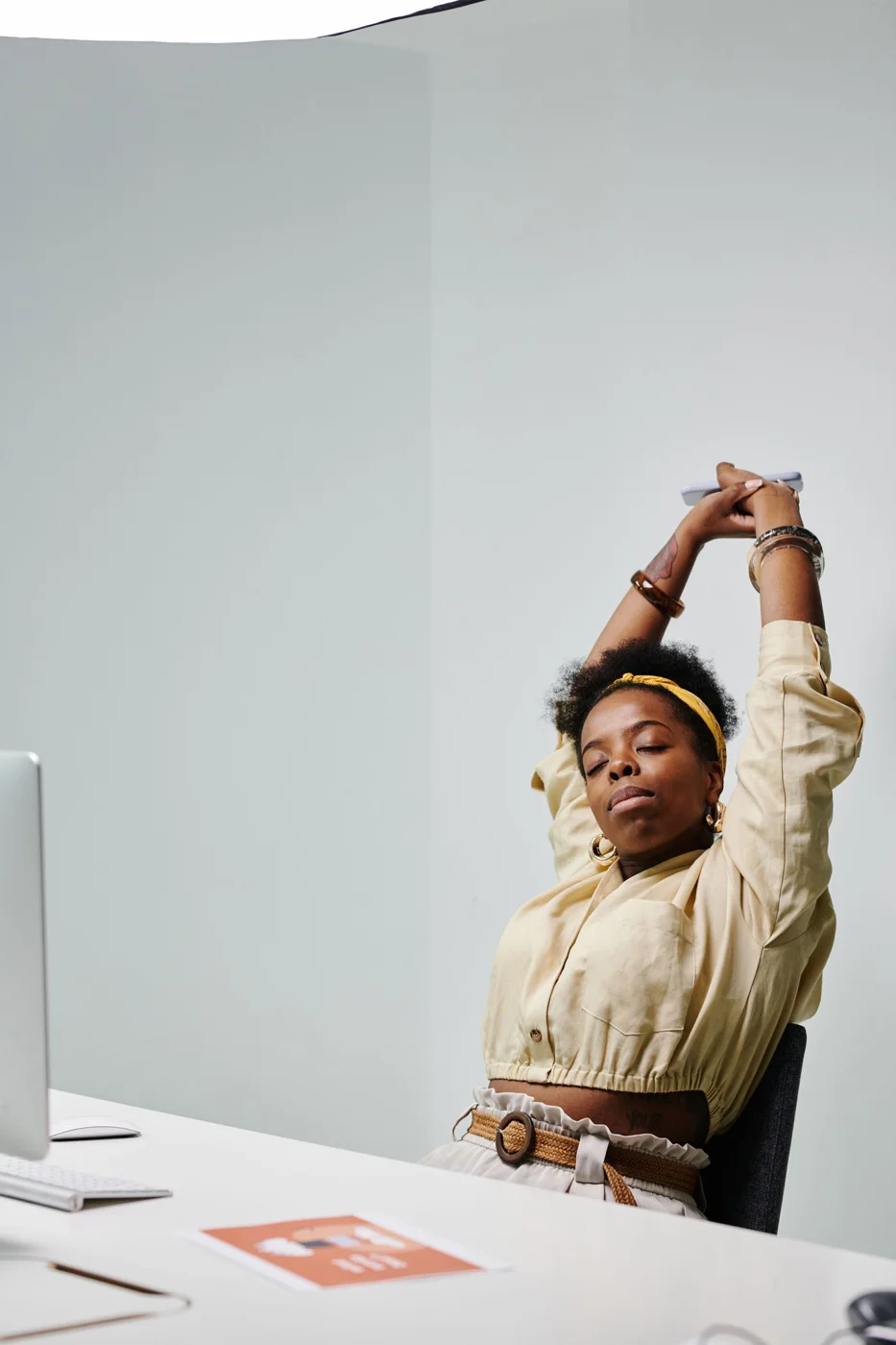
A desk can look neatly arranged while asking your body to make small compromises all day. The screen may be centered on the table but off to one side of the chair. A laptop raised to a useful viewing height may leave its keyboard awkwardly high. Improving the setup means looking at the whole task, not just buying a monitor stand.
Sit in the position you normally use and open the work you look at most. Notice where your head turns, where your hands reach and whether your feet have comfortable support. Do this during ordinary work rather than posing in the posture you think a photograph should show.
Put the main task in front
OSHA recommends positioning a frequently used monitor in front of the user and adjusting its height to avoid awkward head positions. The exact arrangement depends on the task, screen and any vision needs. If printed material is your main reference, it may need the central position instead.
For a laptop used for extended work, raising the screen often means needing a separate keyboard and pointing device. Otherwise the viewing improvement can create a new reaching problem. Check the stability of any support and keep ventilation openings clear.
With two monitors, decide which one does most of the work. Place that screen where you naturally face, then bring the second close enough that frequent use does not require a large repeated turn. If you use them equally, a balanced arrangement may make more sense. There is no benefit in keeping a symmetrical layout that does not match your tasks.
Fix visibility before leaning closer
Increase text size if you are constantly moving toward the screen. Check glare from windows and lamps, and try changing the screen's angle or the light's position. A bright reflection can make you adopt an awkward position simply to see around it.
Keep the keyboard and mouse within a comfortable reach. Move decorative objects and rarely used equipment out of that working area. A tidy desk with the mouse squeezed into a narrow corner is still an inconvenient desk.
Cables deserve a separate check when anything moves. Leave enough slack for normal adjustments without creating loops across the floor. Make sure a rising desk will not pull a monitor, charger or lamp from its surface.
Test the arrangement during real work
Use the changed setup for a familiar task, then notice what still feels awkward. Adjust one detail at a time. A photograph can help you remember the layout, but comfort and function matter more than reproducing an ergonomic illustration exactly.
Persistent pain, numbness or visual symptoms should be assessed rather than managed solely by moving equipment. A workstation adjustment can remove an obvious inconvenience; it is not a diagnosis. The useful outcome is a desk that allows variation and easy access, with the tools positioned around the work you actually do.
A shared desk needs a quick reset
If two people use the same workstation, save each person's settings if the equipment allows, or keep a discreet note of the adjustments. The taller person's screen position may not work for the shorter person, and a chair moved for one task may leave the keyboard awkward for the next user. Before beginning, check the chair, screen and pointing device as a group. A headset or document stand may also need moving. Keep shared adjustments easy to make without tools where possible. If an adjustment is difficult or unstable, ask the equipment supplier or workplace support team for help rather than balancing the screen on a makeshift stack.